Buying a Used iPhone in Georgetown? 6 Things to Check Before You Pay
Buying a used iPhone in Georgetown? Check Activation Lock, stolen status, carrier lock and battery health in minutes, before any money changes hands.
Buying a used iPhone in Georgetown, or anywhere around Austin, can save you a nice chunk compared to buying new. It can also leave you with a phone you can't use if you skip a few quick checks. The good news: most of them take about a minute, right there with the seller. Here's what to look at before any money changes hands.
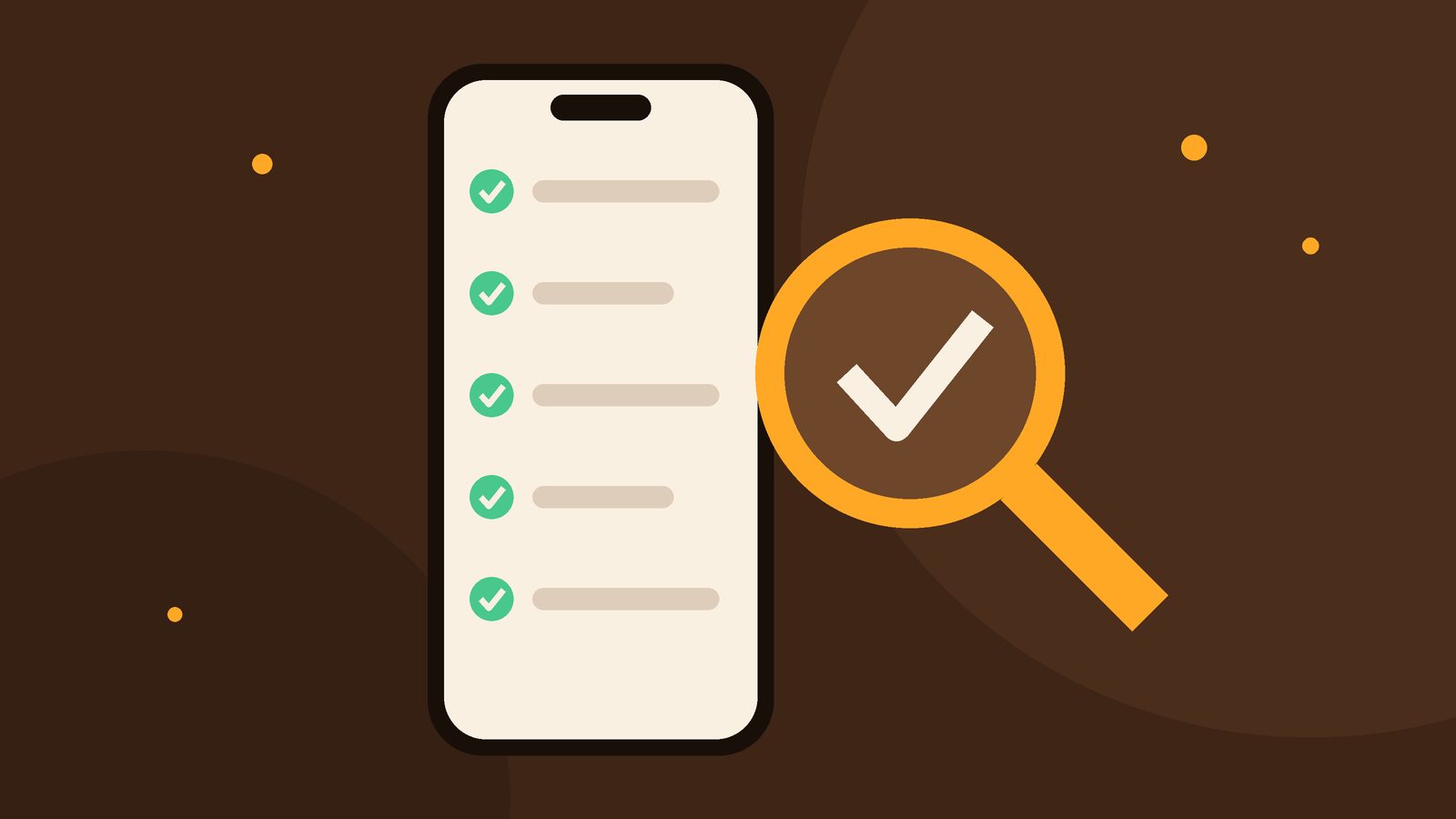
What to check before you buy a used iPhone
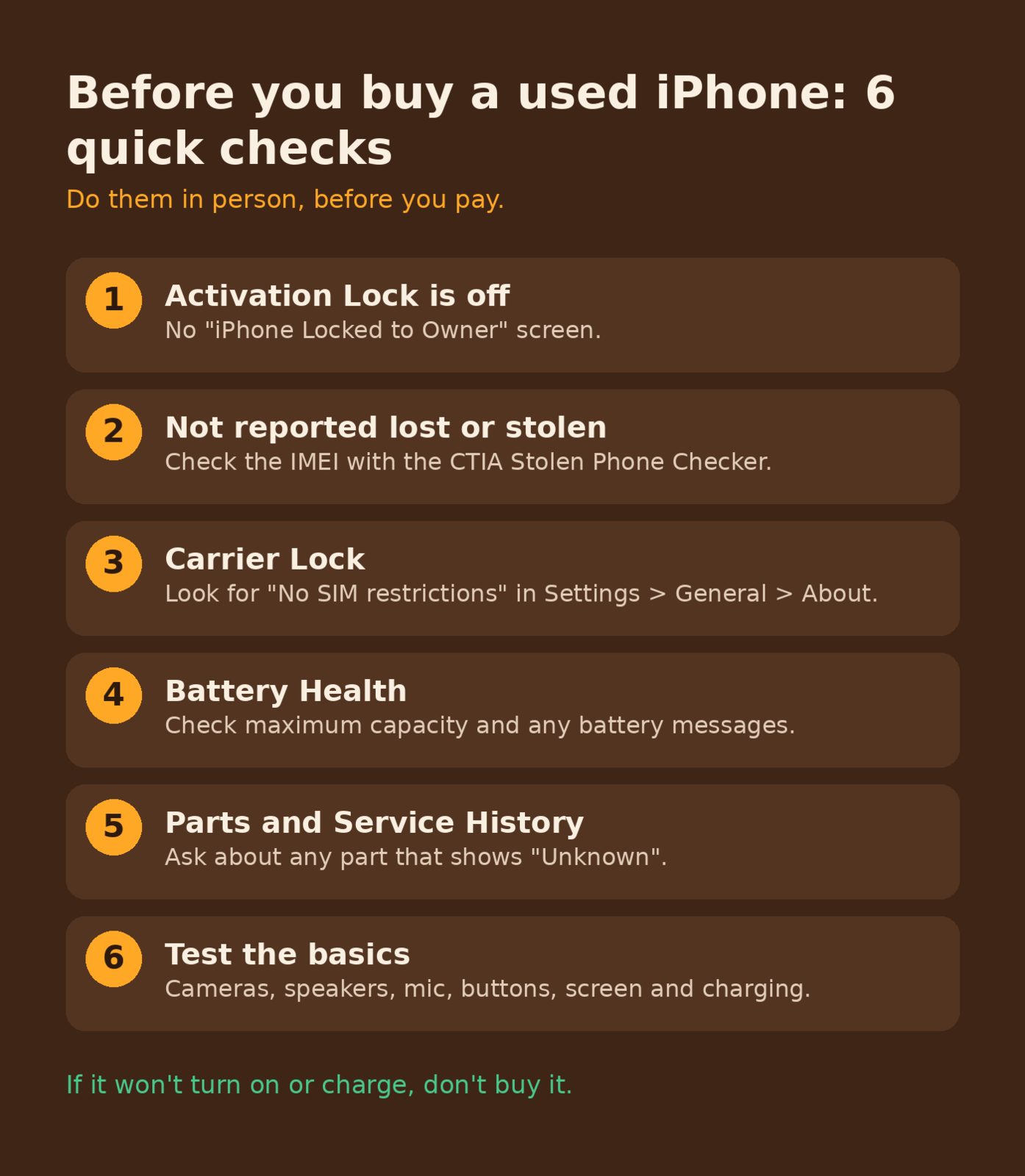
If you only remember one list, make it this one:
- Activation Lock is off and the phone isn't tied to the seller's Apple Account.
- It isn't reported lost or stolen.
- It isn't locked to a carrier you don't use.
- Battery Health looks reasonable for the price.
- Parts and Service History doesn't hold surprises.
- The basics work: screen, cameras, speakers, mic, buttons and charging.
Apple has its own checklist for this, called If you want to buy a preowned iPhone. The steps below follow it.
1. Make sure Activation Lock is off
This is the big one. Activation Lock is part of Find My, and it ties the iPhone to its owner's Apple Account. Apple says the account password is needed before anyone can turn off Find My, erase the phone, or reactivate and use it. Apple's advice is simple: don't take ownership of a used iPhone that's protected by Activation Lock or that hasn't been removed from the previous owner's account.
What you should see when it powers on
Turn the phone on. You should see the Lock Screen, the Hello screen, or a screen that says iPhone Locked to Owner. If you see that last one, ask the seller to turn off Activation Lock while you're standing there. If it's still on, don't buy it. If the phone is passcode protected, Apple suggests asking the seller to erase it so you can test it.
2. Check that it isn't reported lost or stolen
Find the IMEI in Settings > General > About. On many newer models it's also printed on the SIM tray. Then enter it at the CTIA Stolen Phone Checker, a public service from CTIA, the U.S. wireless industry group. A "Reported Lost or Stolen" result means the device is on the GSMA block list.
A clean result only shows the status at that moment, and it depends on what carriers report, so treat it as one check, not the whole story. Wi-Fi only devices don't have an IMEI, so this tool can't look them up.
3. Look at Carrier Lock
Stay in Settings > General > About and look next to Carrier Lock. "No SIM restrictions" means the phone is unlocked. If a carrier's name shows up, the phone only works with that carrier, and Apple notes that only that carrier can unlock it. While you're at it, ask the seller if the phone is fully paid off.
4. Check Battery Health
Go to Settings > Battery > Battery Health (called Battery Health & Charging on some iOS versions). Look at maximum capacity and any battery messages. A lower number doesn't have to be a deal breaker, since a battery can be replaced, but it's fair to factor in. Apple also notes that battery health isn't shown for unknown or non-genuine batteries. If the phone you end up with needs a fresh one, here's how our battery replacement works.
5. Look at Parts and Service History
On iOS 15.2 or later, Settings > General > About can show a Parts and Service History section if parts were replaced. "Genuine Apple Part" means the repair used genuine Apple parts and processes. "Unknown" can mean the part isn't genuine, was used in another iPhone, wasn't fully set up, or isn't working as expected. That's not always a reason to walk away, but it's worth a question and maybe a lower offer.
6. Test the basics
Take the case off and give it a real once-over:
- Look for cracks, scratches, dents and gunk in the charging port.
- Connect to Wi-Fi if you can, then forget the network if you pass on it.
- Press the volume buttons, the side button and the Ring/Silent switch or Action button.
- Take photos in bright and low light with every camera, and record a short video.
- Record a quick voice memo and play it back to check the mic and speaker.
- Turn the brightness up and down and look over the whole screen.
- Plug it in. Apple's advice: if it won't turn on or charge, don't buy it.
A few meetup tips
Meet somewhere public and busy, bring your own charging cable, and don't feel rushed. A seller with a good phone usually won't mind you taking a few minutes to check it.
Want to skip the homework?
We sell tested, cleaned used devices on our devices page, and we meet curbside around the Austin metro, including Georgetown. Already bought one and it needs a screen or battery? We do a free diagnostic and a clear quote before any paid work, with curbside pickup from your home, office or a coffee shop. Tell us what you've got or call (512) 649-5492.