Phone Not Charging in Kyle? Charging Port Repair or Just Lint?
Phone not charging? Try these free fixes first, spot the signs of a bad port, and see how phone charging port repair works in Kyle and Austin.
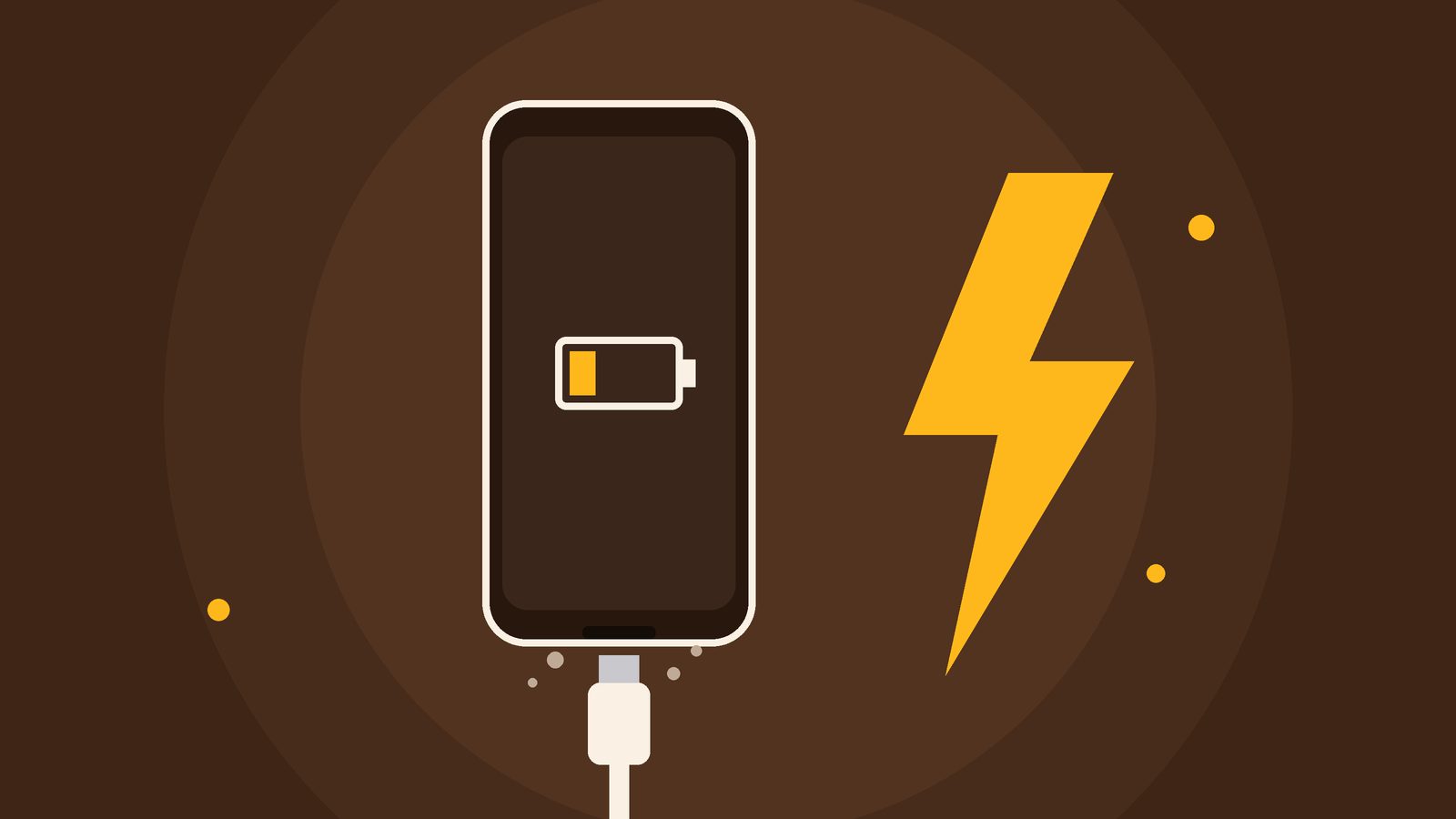
Plugged in, but nothing happens? Or it only charges if you hold the cable at just the right angle? Before you start shopping for a new phone, know this: a lot of the time the problem is a worn cable, a weak charger or plain old pocket lint. Here's how to figure out whether you need phone charging port repair in Kyle or just a new cable, with fixes you can try for free in the next ten minutes.
Phone charging port repair in Kyle: is it really the port?
Charging takes three things working together: the power source, the cable and adapter, and the port on your phone. When charging stops, any one of them can be the reason. The trick is to change one thing at a time so you know which part is actually at fault.
Apple's own guide for an iPhone that won't charge lists a dirty or damaged charging port, a damaged accessory or a charger that isn't made for charging phones as common causes. The same basic idea applies to Samsung Galaxy and Google Pixel phones too.
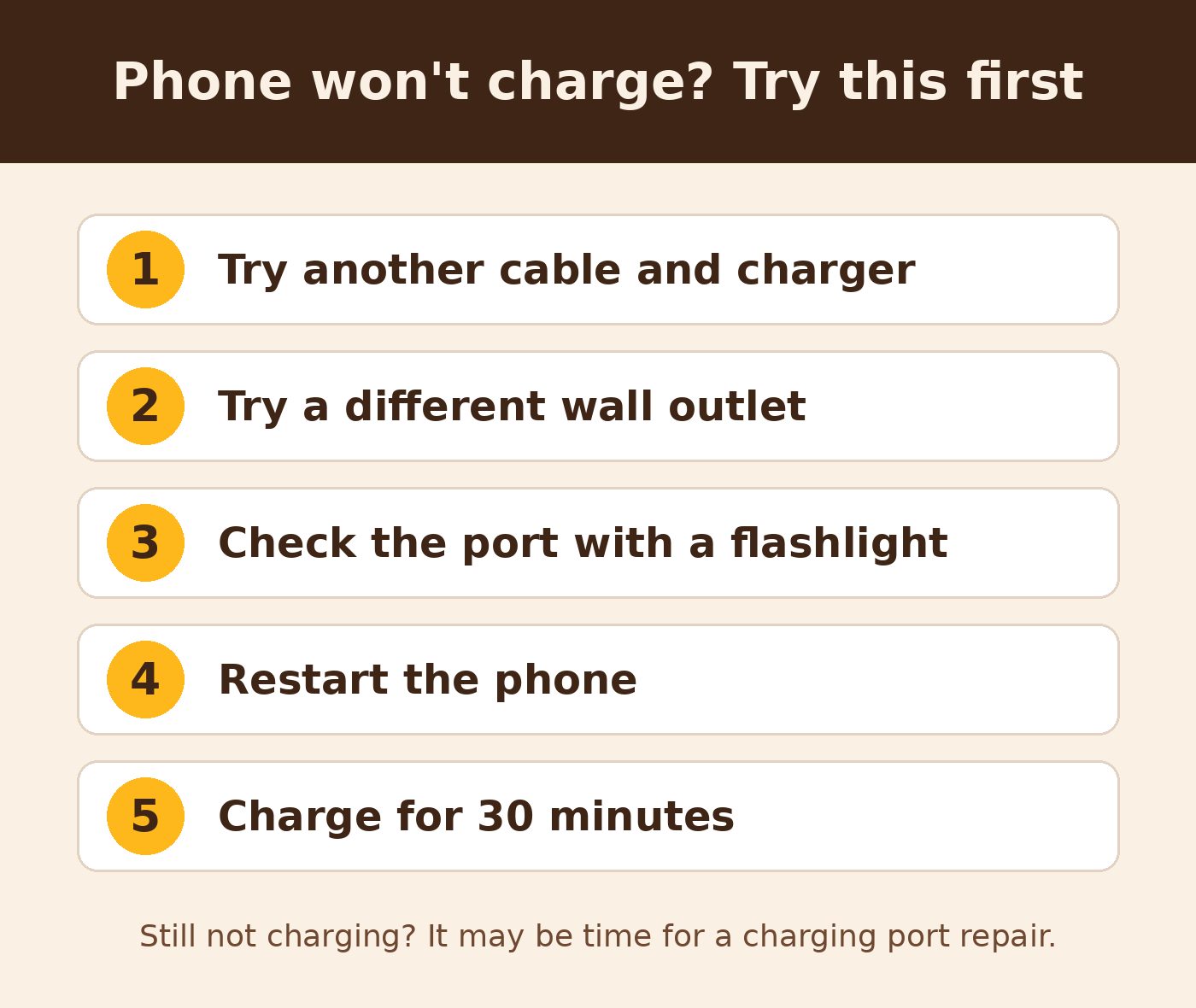
Phone won't charge? Try this first
Work through these in order. They cost nothing and they solve a surprising number of charging problems.
- Try another cable and charger. Cables wear out near the ends, and a bent or frayed one can stop charging completely. Apple says not to use damaged accessories.
- Try a different wall outlet. Plug straight into the wall, not a power strip, car port or old laptop.
- Check the port with a flashlight. Look inside the port at the bottom of your phone. Lint and dust get packed in there over time, and the plug can't seat all the way.
- Restart the phone. A quick restart clears software hiccups that can stop charging. If the screen stays black, Apple suggests a force restart.
- Charge for 30 minutes. A completely drained battery may show nothing at first. Apple recommends letting it charge for half an hour before deciding it's dead.
If you spot lint, Apple's advice is to remove the debris from the port and then plug the cable in firmly. Be gentle. If it's packed in tight or you're not comfortable digging around in there, that's a good moment to let a tech take a look.
Seeing a liquid or moisture warning?
Newer phones can tell when there's water in the port and will pause wired charging to protect it. On an iPhone, Apple's liquid-detection alert page says to unplug, tap the phone gently against your hand with the connector facing down, and wait at least 30 minutes in a dry spot with some airflow. It can take up to 24 hours to fully dry.
Samsung's moisture warning guide says water usually evaporates from the port in about 1 to 2 hours, and that wireless charging isn't affected by moisture in the port, as long as the phone itself is dry. Apple also lets you use a Qi-certified wireless charger once the back of the phone is dry.
While you wait, skip the rice, the hair dryer and the cotton swab. Apple specifically says not to use an external heat source or compressed air, not to stick objects like cotton swabs into the connector, and not to put your iPhone in a bag of rice.
Signs the charging port is the problem
If you tried a known-good cable and charger and the trouble is still there, the port itself may be worn or damaged. Common signs:
- The cable feels loose or falls out with a light bump.
- It only charges when you hold or bend the cable a certain way.
- Charging keeps starting and stopping.
- The plug won't go all the way in, even after a careful cleaning.
- Your computer doesn't see the phone when you plug it in, even with a different cable.
- You see bent pins, green or white crust, or other visible damage in the port.
Some of these can also point to a tired battery or a board-level issue, which is why a proper diagnostic matters before anyone replaces parts.
When DIY is a bad idea
Cleaning the outside of the port carefully is one thing. Prying out a stuck plug, poking hard with metal tools or opening the phone to swap the port yourself is another. Modern phones are sealed with adhesive and packed tight, and a slip can damage the screen, the battery or the port's tiny pins. If a simple clean didn't fix it, it's time for a pro.
How charging port repair works with Damage Control
We're a family owned mobile repair service, and we cover Kyle, Buda, Austin and the rest of the metro. Here's how it goes:
- Curbside pickup. A tech picks up your phone at your home, office or a public spot like a coffee shop, then brings it back when it's done. We never come inside.
- Free diagnostic. We check whether it's the port, the battery or something else, and give you a clear quote before any paid work.
- No fix, no pay. If we can't fix it, you don't pay for the repair.
- Timing. Most repairs other than in-stock screens and batteries take 24 to 48 hours.
- 90-day warranty on parts and work. It doesn't cover new physical damage after the repair, and liquid-damage repairs are best effort with no warranty.
One tip before any repair: back up your phone first. It's always a good habit, and we aren't responsible for data loss.
Need a hand in Kyle?
If your phone still won't charge after the quick fixes above, tell us what's going on and we'll set up a free diagnostic with curbside pickup. You can also call or text (512) 649-5492 or email hello@idamagecontrol.com.